 Rhine-o
Using Teams & Saved Lists
Using your teams
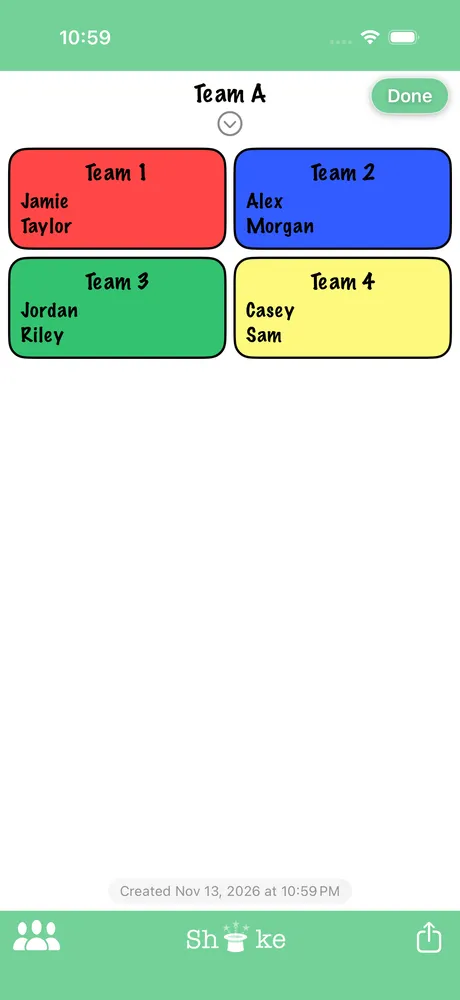
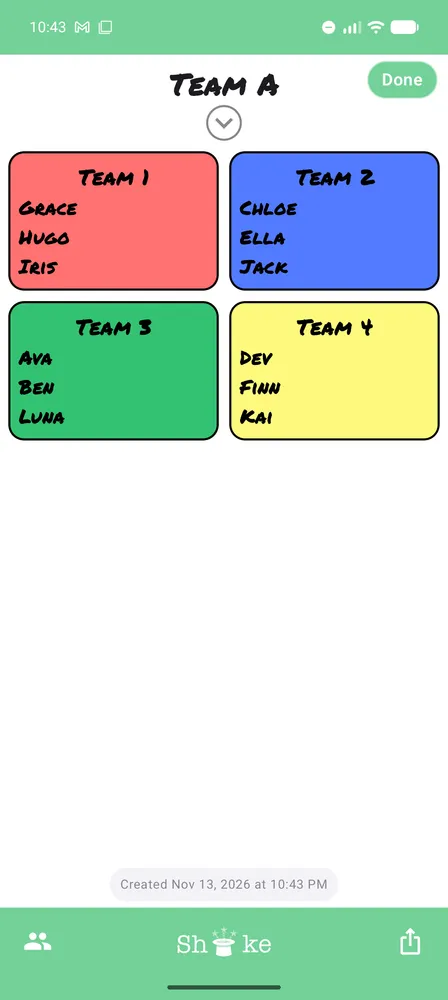
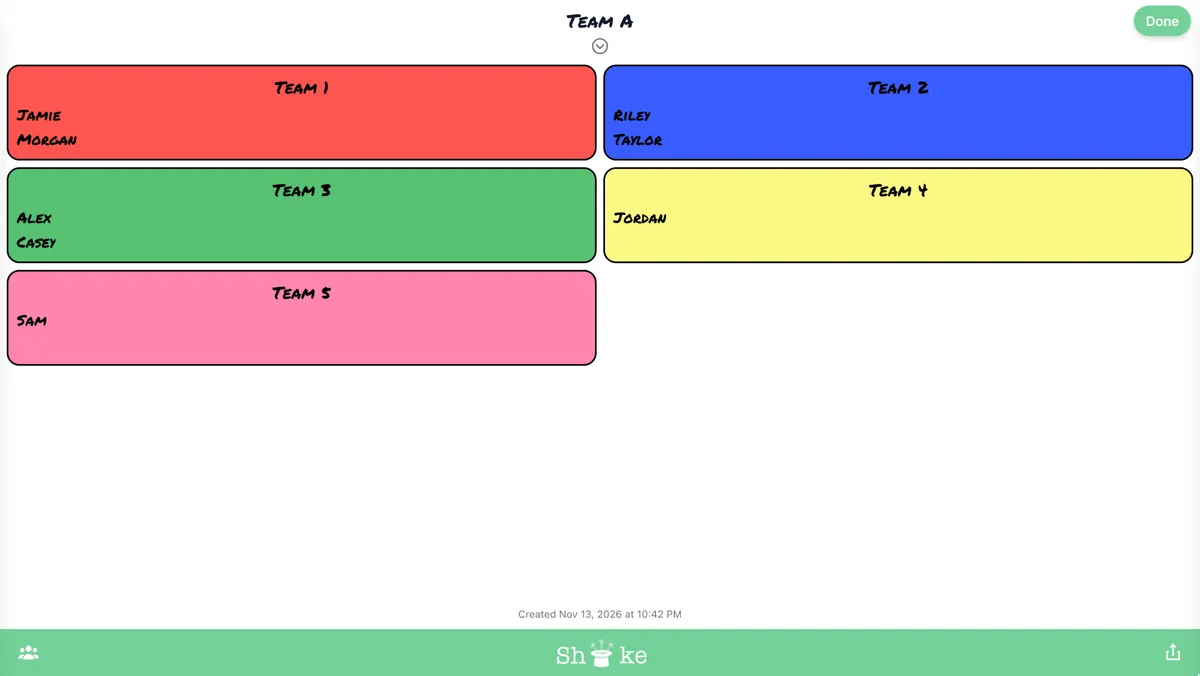
The Teams screen: team members in colored cards, one card per team.
- Team cards. Each team gets its own color and name. Names are sorted alphabetically by default (see Sort by Last Name, Sort Generated Teams and Never Sort Single Team to change that). Team names and colors can be customized in the options.
- Make a new set. Press the Shake button again (or, on iOS and Android, shake the device) to make a fresh set of teams from the same list. On the web the button is Reshake. If a good set of teams has been lost to an accidental shake, turn off Follow-up Shake. On the web you can lock the teams you like.
- Columns and text size. Teams are shown in columns; change Columns and Text Size to fit a classroom screen or a phone.
- Done. Return to the main screen.
- Created. Each result is stamped with the date and time it was created.
- Share and export. See Sharing & Exporting Results.
- Scores and brackets. Keep score, start a tournament, or run a sequence of rounds. See Tournaments, Sequences & History.
Working with lists
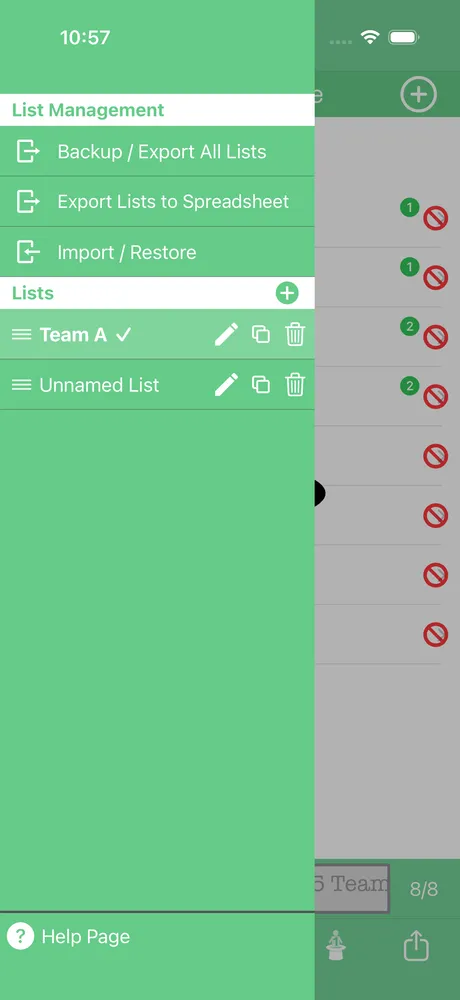
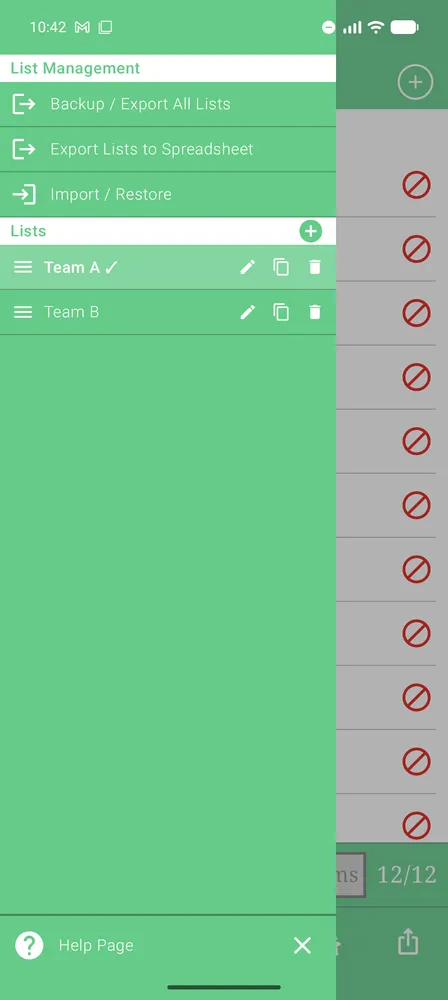
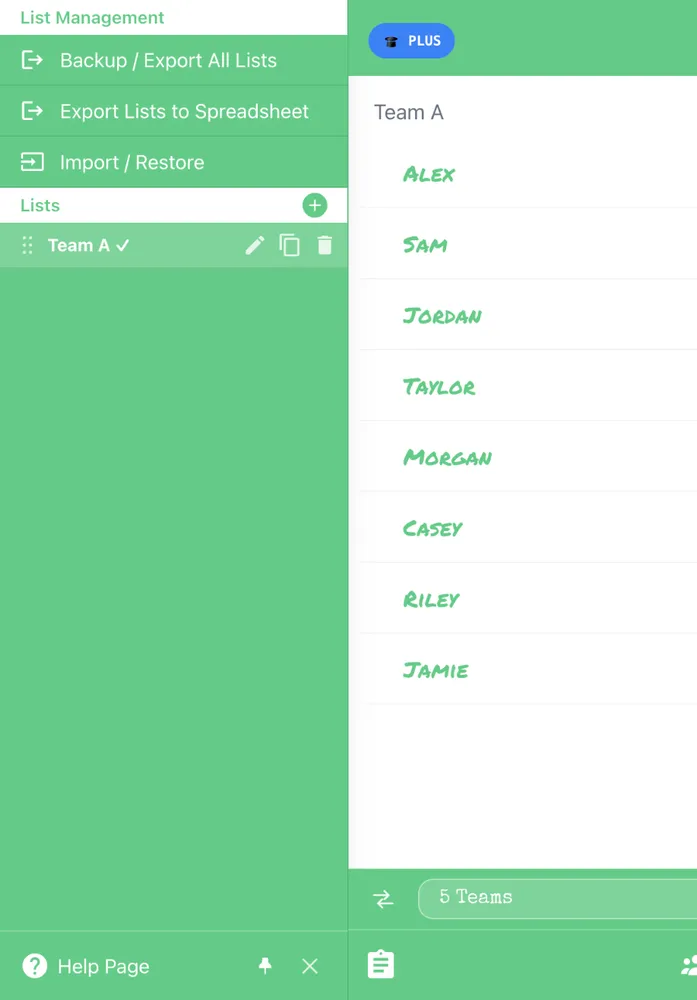
The lists sidebar: list management at the top, then all of your saved lists.
Open the lists sidebar from the left side of the main screen. It has two parts.
List Management at the top:
- Backup / Export All Lists: see Backing Up & Restoring.
- Export Lists to Spreadsheet
- Import / Restore: see Importing Lists.
Your lists below it:
- Tap a list to load it. The current list has a checkmark.
- Add a new list with +.
- Rename, Duplicate or Delete a list with its menu, and drag lists to reorder them.
- If you’ve changed the list you’re on, Team Shake asks whether to Save & Load, Discard & Load or Cancel before switching.
On the web, Save as new list makes a copy of the list you’re working on.