 Rhine-o
Configuration Options Reference
The full reference for every setting on Team Shake’s configuration screen, grouped the way they appear in the app.
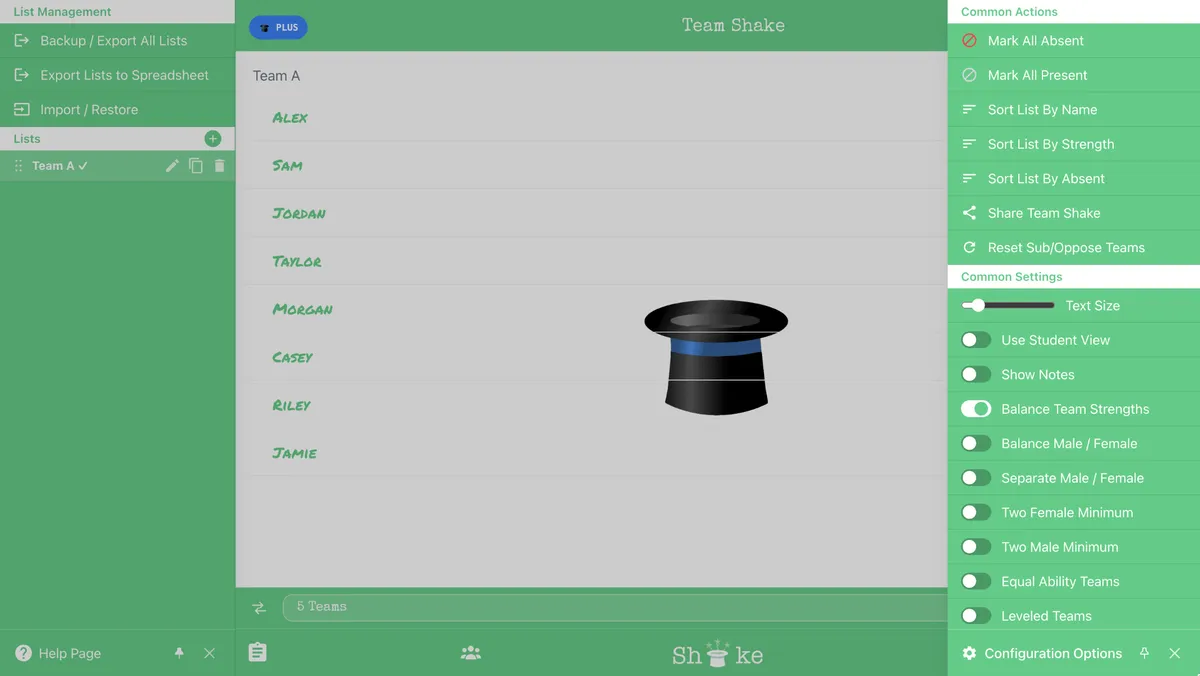
The options are the same on iOS, Android and the web. Open Configuration Options from the right-hand menu. The screen has a search box at the top, so you can find an option by name. A few quick toggles (Text Size, Student View, Show Notes, Balance Team Strengths and others) are also in the right-hand menu on the main screen.
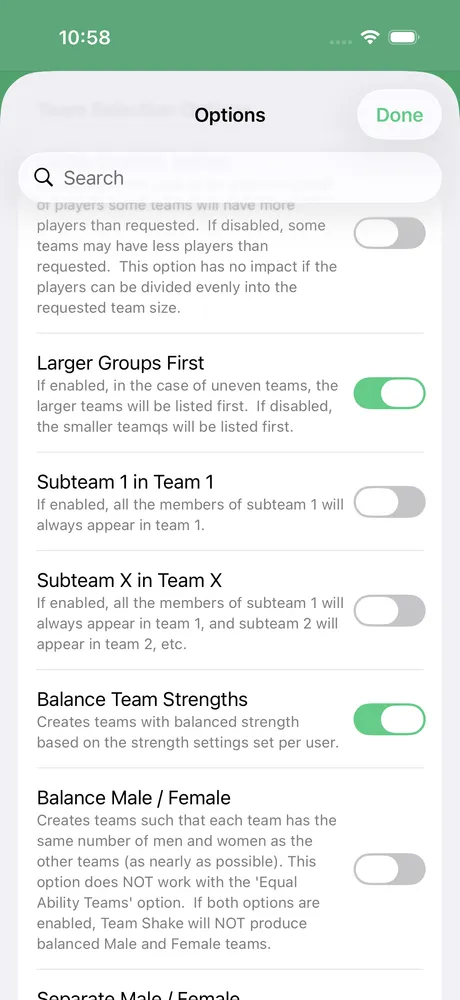
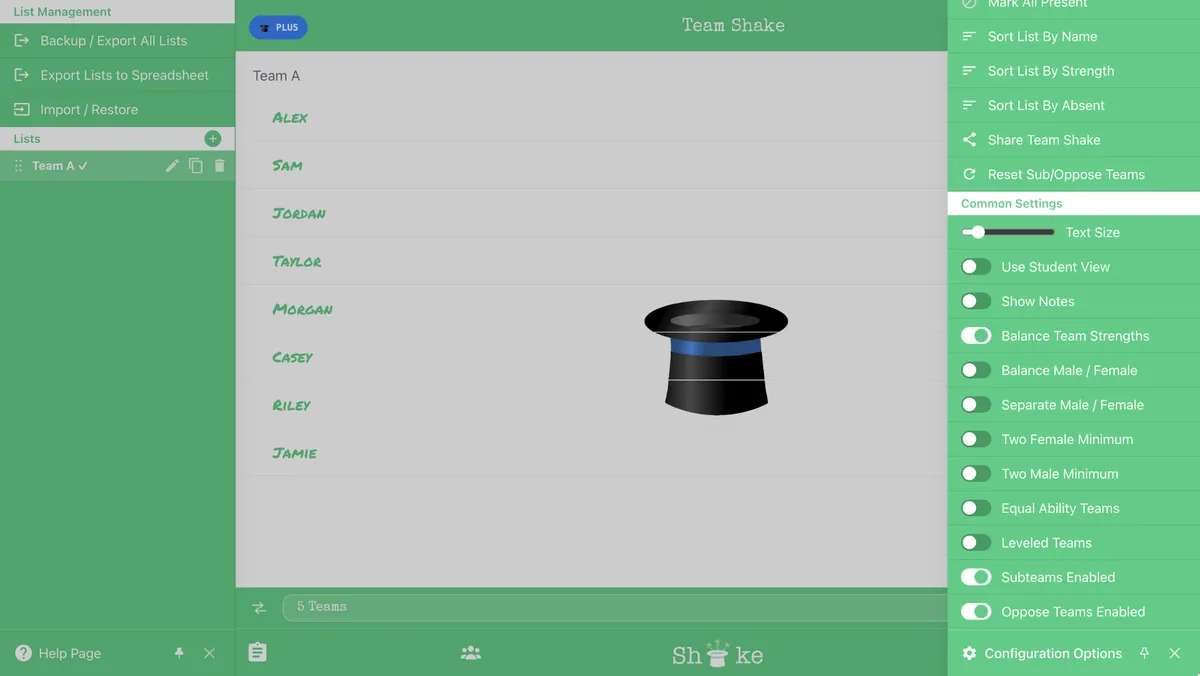
Team selection options.
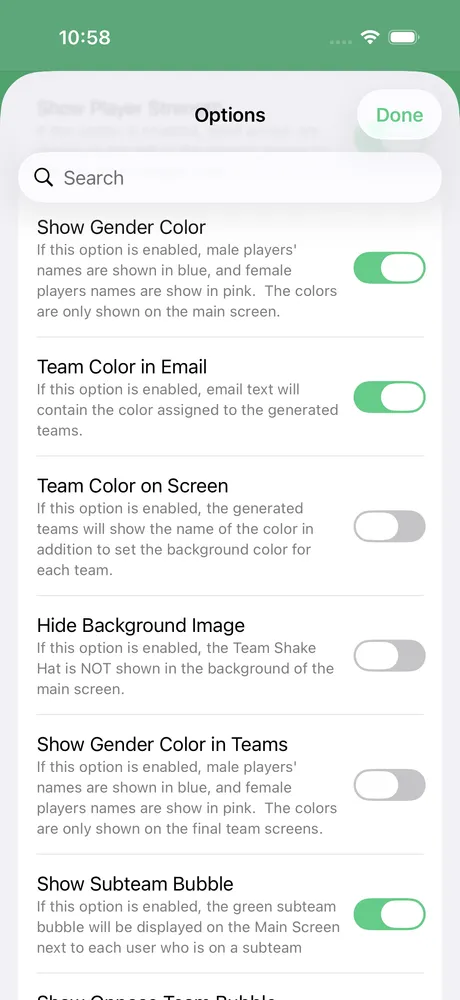
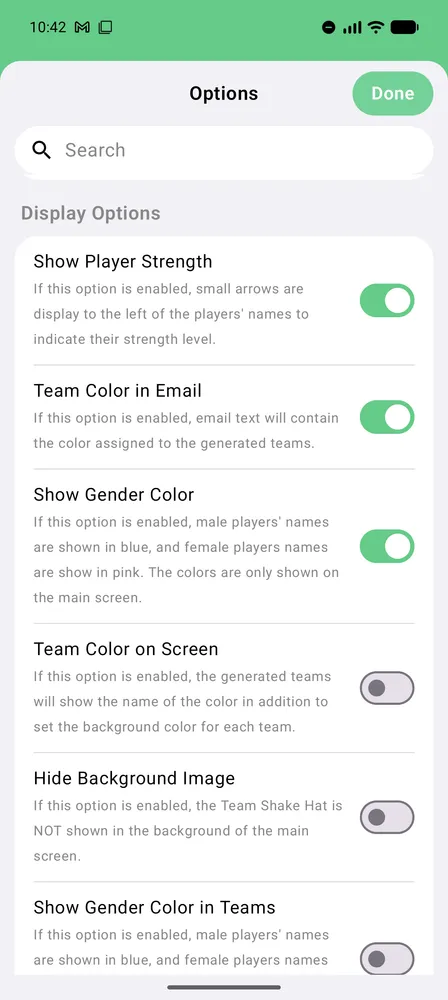
Display options.
General options
| Option | What it does |
|---|---|
| Initial Shake | Enables/disables creating teams by shaking your device on the main screen. |
| Follow-up Shake | Enables/disables regenerating teams by shaking on the teams screen. |
| Reset to Defaults | Resets configuration options only — never touches saved lists. |
| Delete All Lists | Deletes every saved list. This can’t be undone, and it removes them from your device and from iCloud. Only use it if you’re sure. |
Team selection options
| Option | What it does |
|---|---|
| Larger uneven teams | With an uneven player count, some teams get extra players (rather than fewer) when enabled. |
| Larger Groups First | With uneven teams, lists larger teams first when enabled; smaller teams first when disabled. |
| Subteam 1 in Team 1 | When enabled, subteam 1’s members always land in team 1. |
| Balance Team Strengths | Balances teams using each member’s strength rating. Turn it off when using Equal Ability Teams, or its balancing undoes the grouping. |
| Balance Male / Female | Gives every team the same number of men and women, as evenly as possible. Works together with Balance Team Strengths. If both this and Separate Male/Female are on, Separate wins. Only partly effective with Equal Ability Teams. |
| Separate Male / Female | Creates separate all-male and all-female teams. If both this and Balance Male/Female are on, this one wins. |
| Balance alternates | Balances teams by average (not total) member strength, for situations with substitutes or alternates. Only has an effect while Balance Team Strengths is on. |
| Equal Ability Teams | Groups similarly-strengthed members together rather than distributing them; turn Balance Team Strengths off, or its balancing undoes the grouping. Overrides Leveled Teams. |
| Single Uneven Sized Team | When players can’t divide evenly, puts all the extra/missing members on the last team instead of spreading the imbalance across teams. Only applies when team size (not team count) is specified. |
| Two Female Minimum | Every team gets at least 2 females, or none at all. |
| Two Male Minimum | Every team gets at least 2 males, or none at all. |
| Leveled Teams | Groups players of similar strength together, so there’s no big gap in ability within a team. Ignored while Equal Ability Teams is on. Has no effect unless at least one member has a strength set. |
| Leveled Teams Threshold | The largest strength difference allowed between two players on a leveled team. With a threshold of 2, players at -1, 0 and 1 can share a team, but players at 2 and 5 can’t. |
| Create Even Teams | Every team has an even number of players, except the last, which may be odd if the list is odd. |
| Subteams Enabled | Turns on subteams: members given the same subteam number are placed on the same team. When off, subteam numbers are saved but ignored. On by default. |
| Oppose Teams Enabled | Turns on oppose teams: members given the same oppose-team number are placed on different teams. When off, oppose numbers are saved but ignored. On by default. |
| Subteam X in Team X | Subteam 1 always lands in team 1, subteam 2 in team 2, and so on. |
| Default Team Size | The team size (or number of teams) a new list starts with. |
| Default to Using Number of Teams | New lists start by choosing the number of teams instead of players per team. You can change it per list. |
| Random User Does Not Repeat | The random-player pick won’t repeat a name until everyone’s been picked once. When off, it’s completely random. |
See Advanced Team Selection Scenarios for how these combine in practice.
Display options
| Option | What it does |
|---|---|
| Team color in email | Includes each team’s color name in shared/emailed text. |
| Team color on screen | Shows each team’s color name in addition to its background color. |
| Show player strength | Displays the small strength arrows next to member names. |
| Hide Background Image | Removes the Team Shake hat graphic from the main screen background. |
| Show gender color | Colors member names by gender (blue/pink) on the main screen. |
| Show Gender Color in Teams | Colors member names by gender on the final team screens. |
| Show Subteam Bubble | Shows the green subteam indicator next to members on the main screen. |
| Show Oppose Team Bubble | Shows the red oppose-team indicator next to members on the main screen. |
| Sort by Last Name | Sorts lists and teams by last name instead of first name. |
| Sort Generated Teams | Automatically sorts names within generated teams. |
| Sort Generated Teams by Strength | With sorting enabled, sorts by strength first, then name. |
| Male/Female Sorting | Controls how male and female members are ordered once teams are created. |
| Never Sort Single Team | Skips sorting when only one team is generated — useful for turn-order lists rather than teams. |
| Use Rows for CSV/Excel | Exports one team per row (rather than one team per column). |
| Team Size Preview | Briefly (5 seconds) shows the composition of the teams that will be created. |
| Show Notes | Shows each member’s notes under their name on the main screen. Long notes can be tapped to read or hide the rest. |
| Display List Order | Numbers the players within each team to show the order they appear in. |
| Display Strength in Teams | Shows the strength arrows beside names on the team screens too. |
| Use List Name on Teams Screen | Labels the Teams screen with the list’s name instead of “Teams”. |
| Use Student View | Hides strength, subteam, and oppose-team indicators regardless of their individual settings; also toggleable from the main screen. |
| User Font Size | Font size for the main screen and team list screen. |
| Random User Font Size | Font size for the Random Player popup. |
| Number of Columns | How many columns are used to display generated teams — more columns fit more members per screen but need a smaller font. |
Tournament bracket options
| Option | What it does |
|---|---|
| Two Sides Bracket | Draws brackets like a March Madness bracket, with teams split between the left and right sides meeting at the final. When off, all rounds run left to right. |
| Low Score Wins | The lower score wins a match, for golf, timed events and similar. Turning it on or off re-checks results already entered. |
| No Scoring | Brackets don’t ask for scores; you just pick the winner of each match. |
| Team Color | Fills each team’s cells in a bracket with that team’s color. |
See Tournaments, Sequences & History.
Team colors and names
Team Shake ships 16 default team colors, in order: Red, Blue, Green, Yellow, Pink, Purple, Grey, Orange, Magenta, Turquoise, Mint, White, Beige, Lavender, Black, and Brown. You can reassign any of the 16, but Team Shake won’t stop you from creating duplicates — that’s on you to avoid if it matters. Beyond 16 teams, colors repeat in order (team 17 reuses team 1’s color, and so on). By default, shared text identifies teams as “Team 1 (Red Team)” (or “Team 17 (Red Team 2)” past 16) — disable “Team color in email” if you don’t want the color named.
Team names are configurable per team number (up to 64 teams), independent of color. Subteam and oppose-team names can be set for up to 39 subteams. Random Team Color assigns colors at random instead of always giving team 1 the first color, and ignores the color settings above.